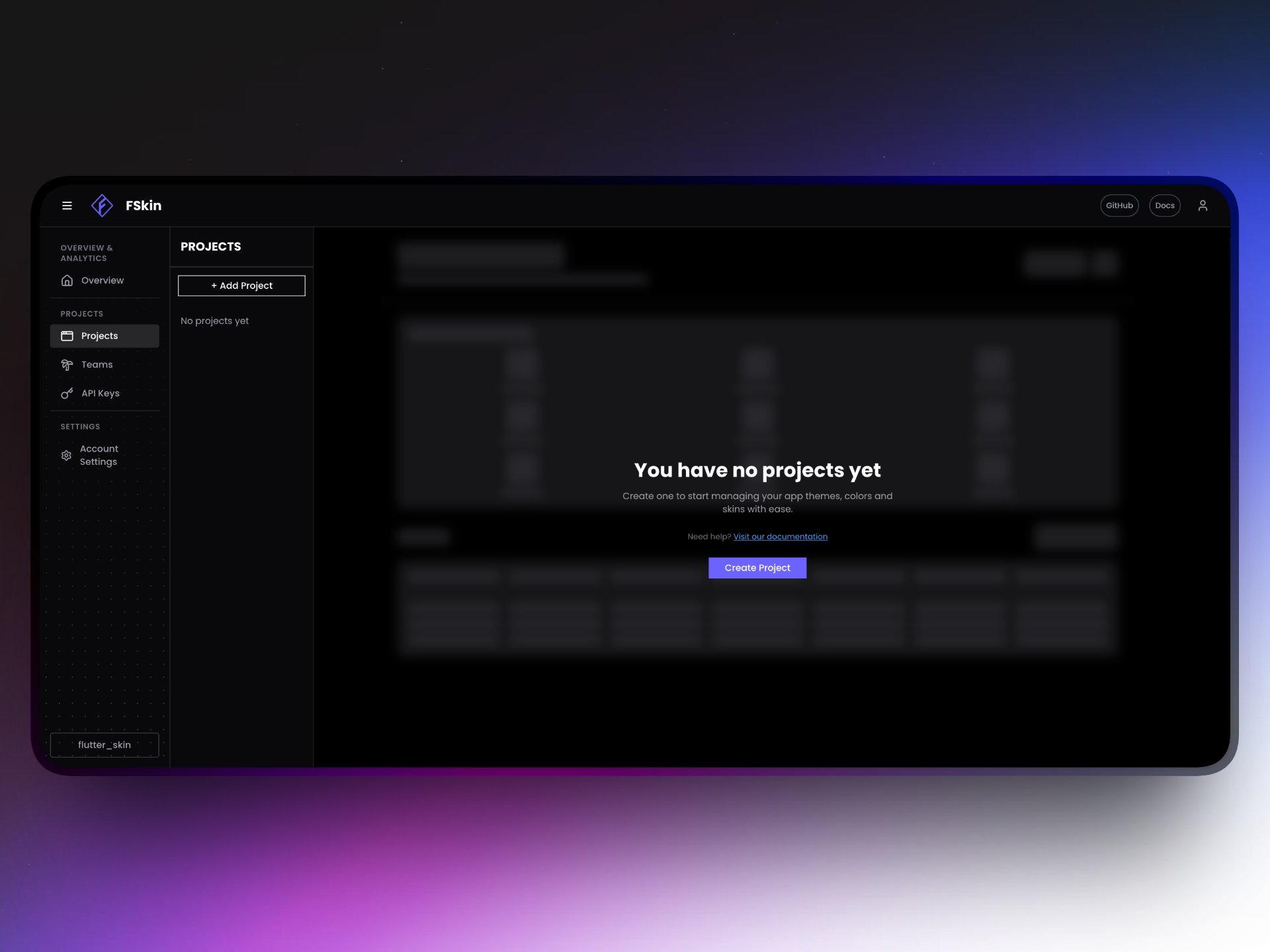
Fskin is a Flutter package that allows you to easily manage and apply themes to your Flutter applications. With Fskin, you can create and customize skins for your app, and switch between them dynamically. All you need to do is create a project in the Fskin dashboard, create a skin, and then use the Fskin package in your Flutter app to apply the skin. Fskin will handle the rest, allowing you to focus on building your app without worrying about theme management.

Prerequisites

Before you begin, you must have:
  • Flutter SDK installed
  • A Flutter Skin dashboard account with API credentials

Get started

1

Add flutter_skin package

Add the flutter_skin package to your Flutter project’s pubspec.yaml:
dependencies:
  flutter:
    sdk: flutter
  flutter_skin: ^0.0.1
Then install the package:
flutter pub get
2

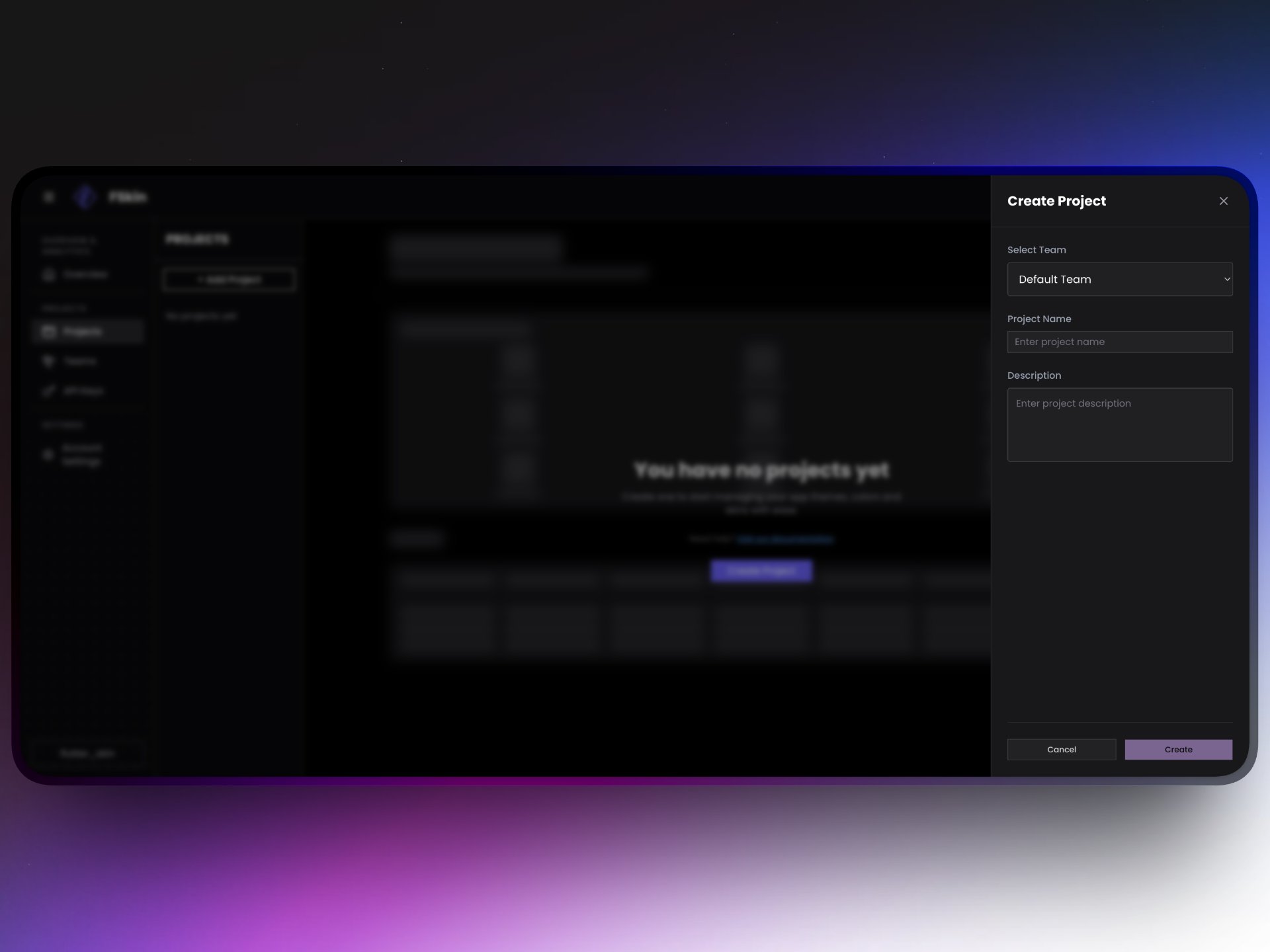
Create a project in the dashboard

  1. Log in to your Flutter Skin dashboard
  2. Click “Create New Project” in the Projects section
  3. Enter your project name
  4. Click “Create” Dashboard Project Creation
3

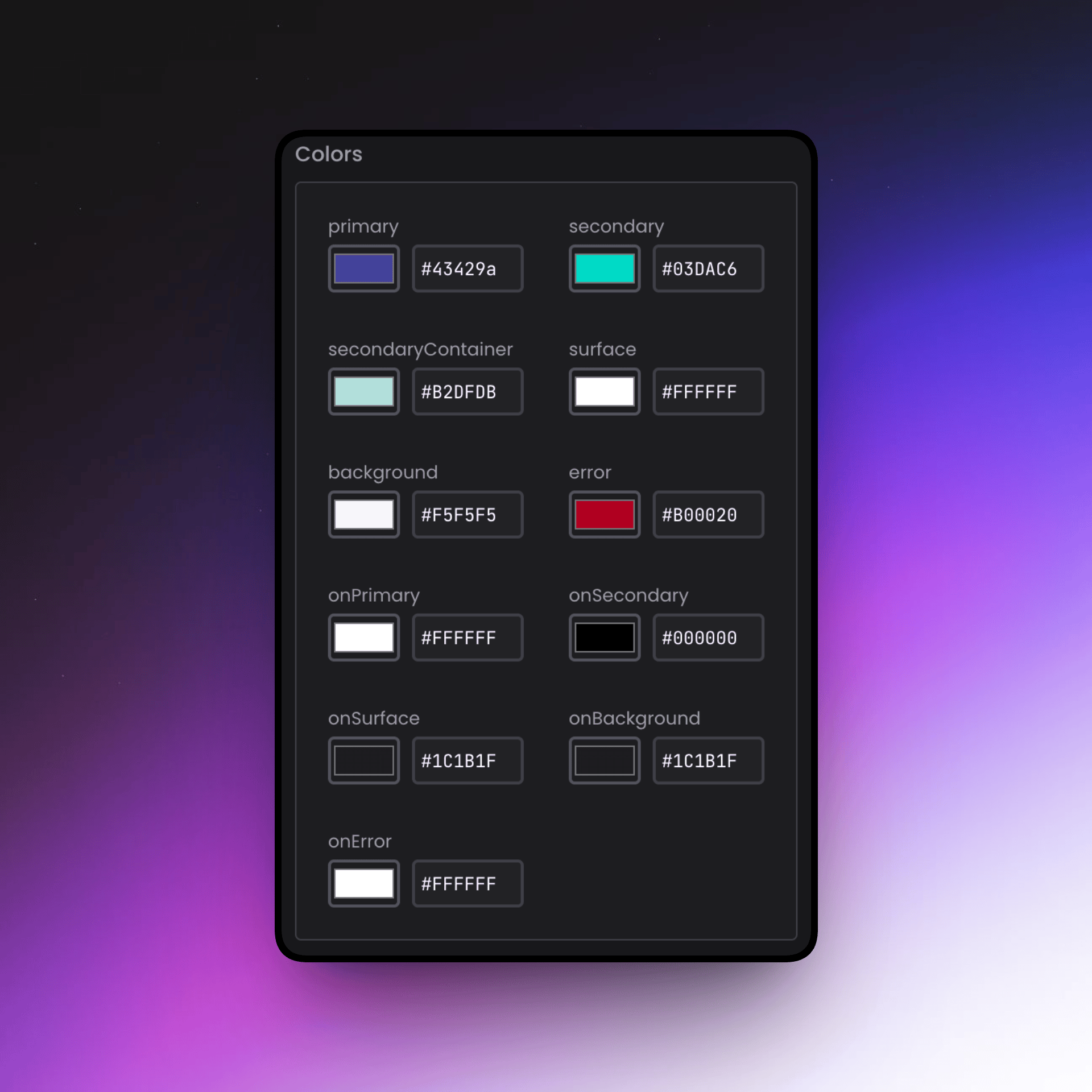
Create a skin and activate it

  1. Navigate to the Skins section
  2. Click “Create New Skin”
  3. Configure your skin theme and colors following the Material Color Scheme schema
  4. Toggle “Active” to true to set it as the active skin
  5. Click “Save” Create and Activate Skin
4

Publish updates on the dashboard

  1. Review your project settings and active skin
  2. Click “Publish” to make your updates live
  3. Wait for the confirmation message
5

Retrieve API credentials

  1. Navigate to API Keys in your dashboard settings
  2. Copy your API key related to your project. You’ll need this to initialize the flutter_skin package in your app.
6

Initialize flutter_skin in your app

Add the FlutterSkin initialization to your app’s main() function:
void main() async {
  WidgetsFlutterBinding.ensureInitialized();
  await FlutterSkin.init(
    apiKey: 'your_api_key_here',
  runApp(const MyApp());
}
Then apply the theme to your main app widget:
class MyApp extends StatelessWidget {
  const MyApp({Key? key}) : super(key: key);

  @override
  Widget build(BuildContext context) {
    return MaterialApp(
      title: 'My App',
      theme: FlutterSkin.toThemeData(),
      home: const HomePage(),
    );
  }
}
Your app will now use the active skin theme from the dashboard! Every time you update the skin in the dashboard and publish it, your users will see the new theme without needing to update the app.
You can configure multiple skins for different themes, and switch between them in two clicks.