> ## Documentation Index
> Fetch the complete documentation index at: https://docs.fskin.dev/llms.txt
> Use this file to discover all available pages before exploring further.
# Quickstart
> Remote skin management for Flutter. Live updates, no app restart. Up and running in 2 lines of code.
FSkin lets you manage your Flutter app's color scheme remotely. Publish a skin from the dashboard — your app updates instantly, no restart required.
## Prerequisites
* Flutter `>=3.0.0` installed
* An FSkin account at [app.fskin.dev](https://app.fskin.dev)
## Get started
```yaml theme={null}
dependencies:
flutter:
sdk: flutter
flutter_skin: ^0.0.2
```
```bash theme={null}
flutter pub get
```
1. Sign in at [app.fskin.dev](https://app.fskin.dev)
2. Navigate to **Projects** → **+ Add Project**
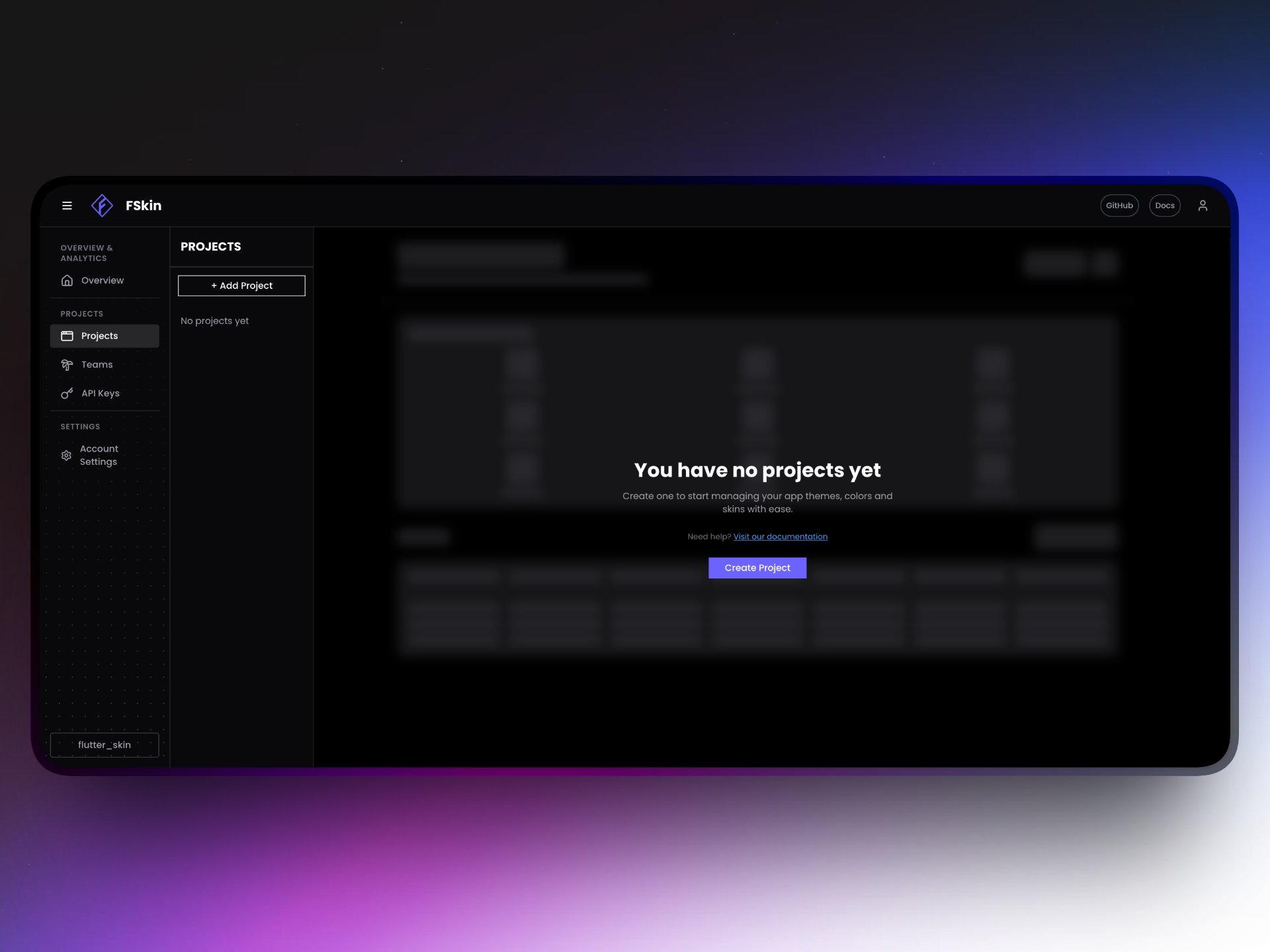 3. Select the project team, by default this is your personal team "Default Team".
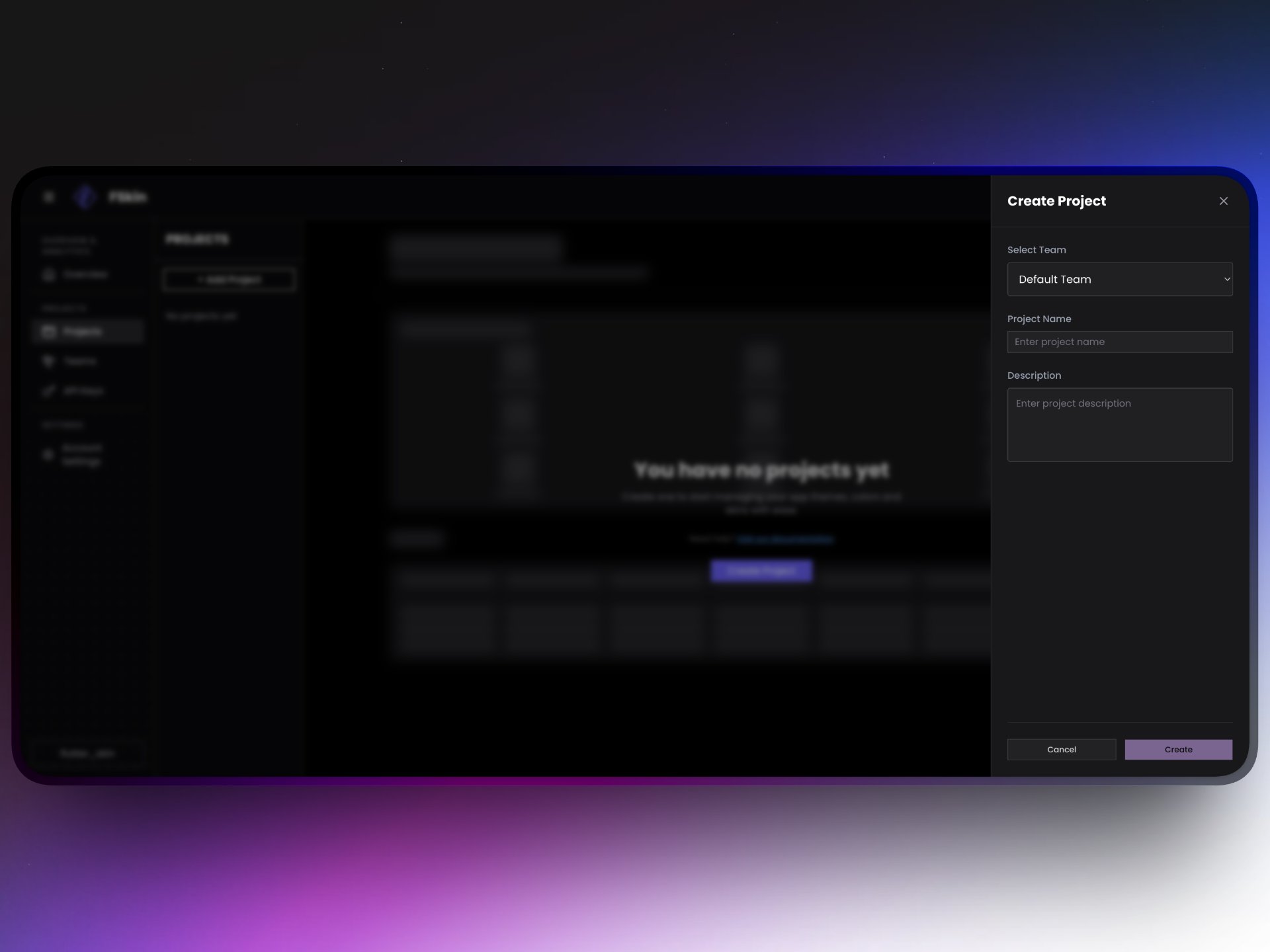 4. Enter a name and a description and confirm
An API key is automatically generated for your project. Copy it from the **API Keys** tab.
1. Open your project → **+ Create Skin**
2. Update the colors, set your primary, secondary, and background colors. You can also set the rest of the color tokens to match your design system.
4. Enter a name and a description and confirm
An API key is automatically generated for your project. Copy it from the **API Keys** tab.
1. Open your project → **+ Create Skin**
2. Update the colors, set your primary, secondary, and background colors. You can also set the rest of the color tokens to match your design system.
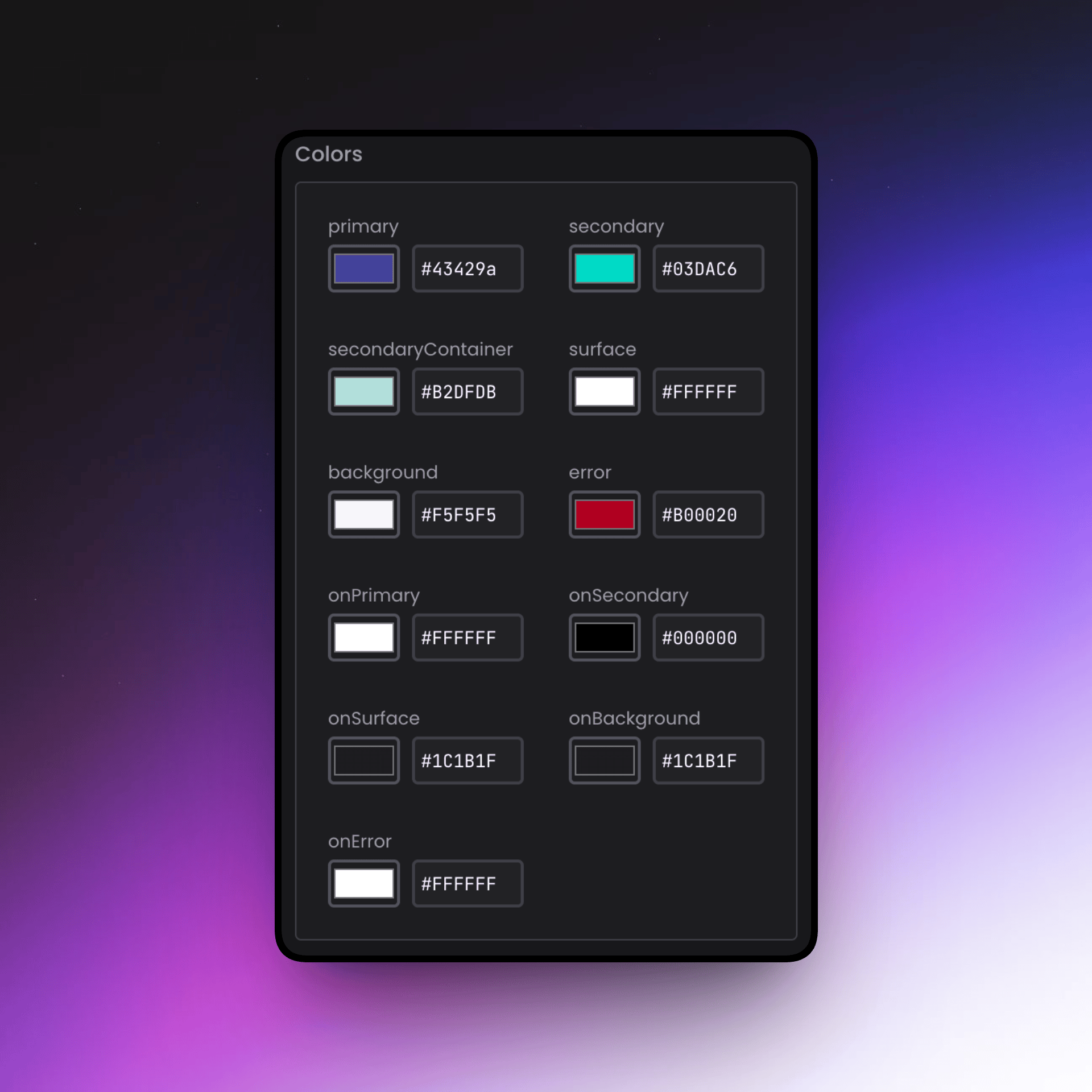 3. Click **Save**
4. Click **Publish** and confirm to make the skin live
Your skin is now live and will be served to any connected Flutter app.
Call `FlutterSkin.init()` before `runApp`, then wrap your `MaterialApp` in a `StatefulWidget` to react to live skin updates:
```dart theme={null}
import 'package:flutter/material.dart';
import 'package:flutter_skin/flutter_skin.dart';
void main() async {
WidgetsFlutterBinding.ensureInitialized();
await FlutterSkin.init(
apiKey: 'fsk_your_api_key_here',
);
runApp(const MyApp());
}
class MyApp extends StatefulWidget {
const MyApp({super.key});
@override
State createState() => _MyAppState();
}
class _MyAppState extends State {
@override
void initState() {
super.initState();
// rebuild app instantly when a new skin is published
FlutterSkin.onSkinChanged.listen((_) {
if (mounted) setState(() {});
});
}
@override
Widget build(BuildContext context) {
return MaterialApp(
title: 'My App',
theme: FlutterSkin.toThemeData(),
home: const HomePage(),
);
}
}
```
That's it (Literally 4 seconds). Publish a new skin from the dashboard — your app updates live without a restart, rebuild, or App Store release.
`FlutterSkin.init()` opens a persistent SSE connection to the FSkin backend. When you publish a skin, the event is pushed to all connected app instances in real time. The connection is automatically paused when the app is backgrounded and resumed when it comes back to the foreground.
3. Click **Save**
4. Click **Publish** and confirm to make the skin live
Your skin is now live and will be served to any connected Flutter app.
Call `FlutterSkin.init()` before `runApp`, then wrap your `MaterialApp` in a `StatefulWidget` to react to live skin updates:
```dart theme={null}
import 'package:flutter/material.dart';
import 'package:flutter_skin/flutter_skin.dart';
void main() async {
WidgetsFlutterBinding.ensureInitialized();
await FlutterSkin.init(
apiKey: 'fsk_your_api_key_here',
);
runApp(const MyApp());
}
class MyApp extends StatefulWidget {
const MyApp({super.key});
@override
State createState() => _MyAppState();
}
class _MyAppState extends State {
@override
void initState() {
super.initState();
// rebuild app instantly when a new skin is published
FlutterSkin.onSkinChanged.listen((_) {
if (mounted) setState(() {});
});
}
@override
Widget build(BuildContext context) {
return MaterialApp(
title: 'My App',
theme: FlutterSkin.toThemeData(),
home: const HomePage(),
);
}
}
```
That's it (Literally 4 seconds). Publish a new skin from the dashboard — your app updates live without a restart, rebuild, or App Store release.
`FlutterSkin.init()` opens a persistent SSE connection to the FSkin backend. When you publish a skin, the event is pushed to all connected app instances in real time. The connection is automatically paused when the app is backgrounded and resumed when it comes back to the foreground.